> ## Documentation Index
> Fetch the complete documentation index at: https://docs.monophonic.io/llms.txt
> Use this file to discover all available pages before exploring further.
# Quickstart
> Get your band's website together in just a few minutes
## 1. Create an Account
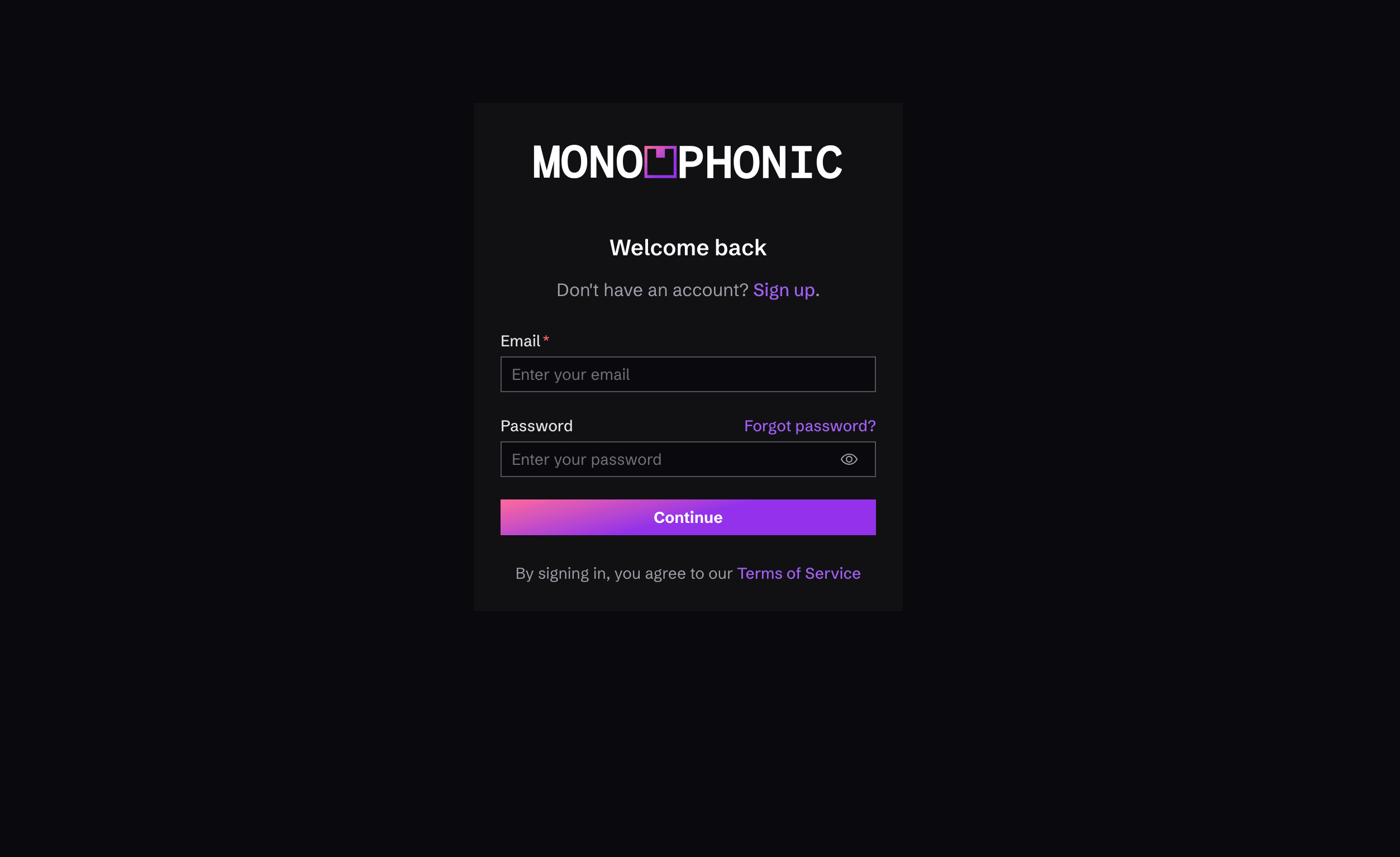 To get your band's website launched, start by visiting [https://manage.monophonic.site/signup](https://manage.monophonic.site/signup) and, well, sign up. No credit card needed, and you'll get a 14-day trial.
Next, you'll enter some information about your band / you as an artist:
Enter your first and last name.
Next, you'll enter the name of your band or of yourself as an artist.
By default, you get a monophonic subdomain, e.g. "myband.monophonic.site", so enter your desired subdomain (you'll be able to connect a custom domain if you want later on)
## 2. Add Content
To get your band's website launched, start by visiting [https://manage.monophonic.site/signup](https://manage.monophonic.site/signup) and, well, sign up. No credit card needed, and you'll get a 14-day trial.
Next, you'll enter some information about your band / you as an artist:
Enter your first and last name.
Next, you'll enter the name of your band or of yourself as an artist.
By default, you get a monophonic subdomain, e.g. "myband.monophonic.site", so enter your desired subdomain (you'll be able to connect a custom domain if you want later on)
## 2. Add Content
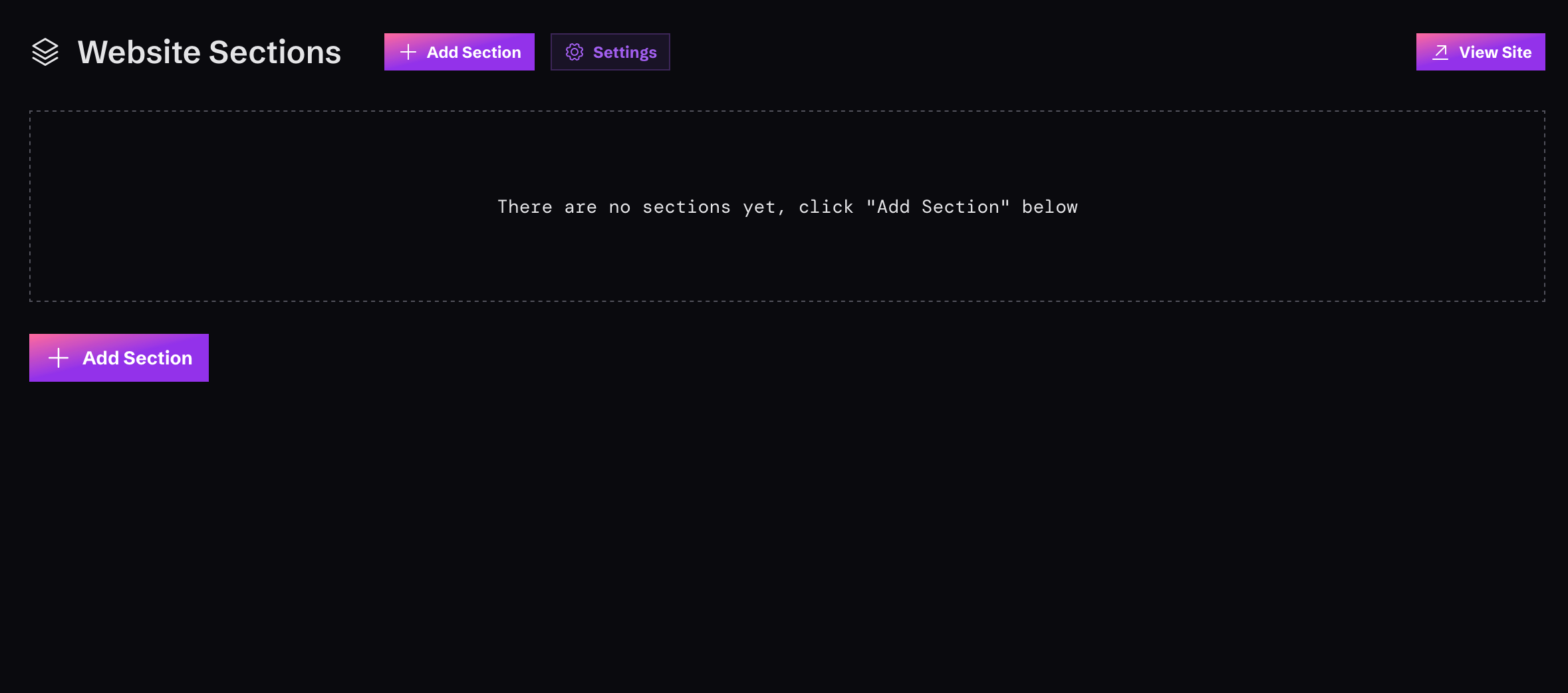 Monophonic.io supports various kinds of content to display in your site, including Tracks, Shows, Photos, Videos, and others. Before you can show any of this conent in your site, you'll need to add it to the system.
To add content, just visit the content area... you'll see a button to add new content of that type. Click that and add away!
### Learn about different content types
To get more details about each of the available types of content, visit any of these links:
* [Tracks](/content-types/tracks)
* [Videos](/content-types/videos)
* [Shows](/content-types/shows)
* [Photos](/content-types/photos)
* [Merch](/content-types/merch)
* [Links](/content-types/links)
## 3. Create Site Sections
Monophonic.io supports various kinds of content to display in your site, including Tracks, Shows, Photos, Videos, and others. Before you can show any of this conent in your site, you'll need to add it to the system.
To add content, just visit the content area... you'll see a button to add new content of that type. Click that and add away!
### Learn about different content types
To get more details about each of the available types of content, visit any of these links:
* [Tracks](/content-types/tracks)
* [Videos](/content-types/videos)
* [Shows](/content-types/shows)
* [Photos](/content-types/photos)
* [Merch](/content-types/merch)
* [Links](/content-types/links)
## 3. Create Site Sections
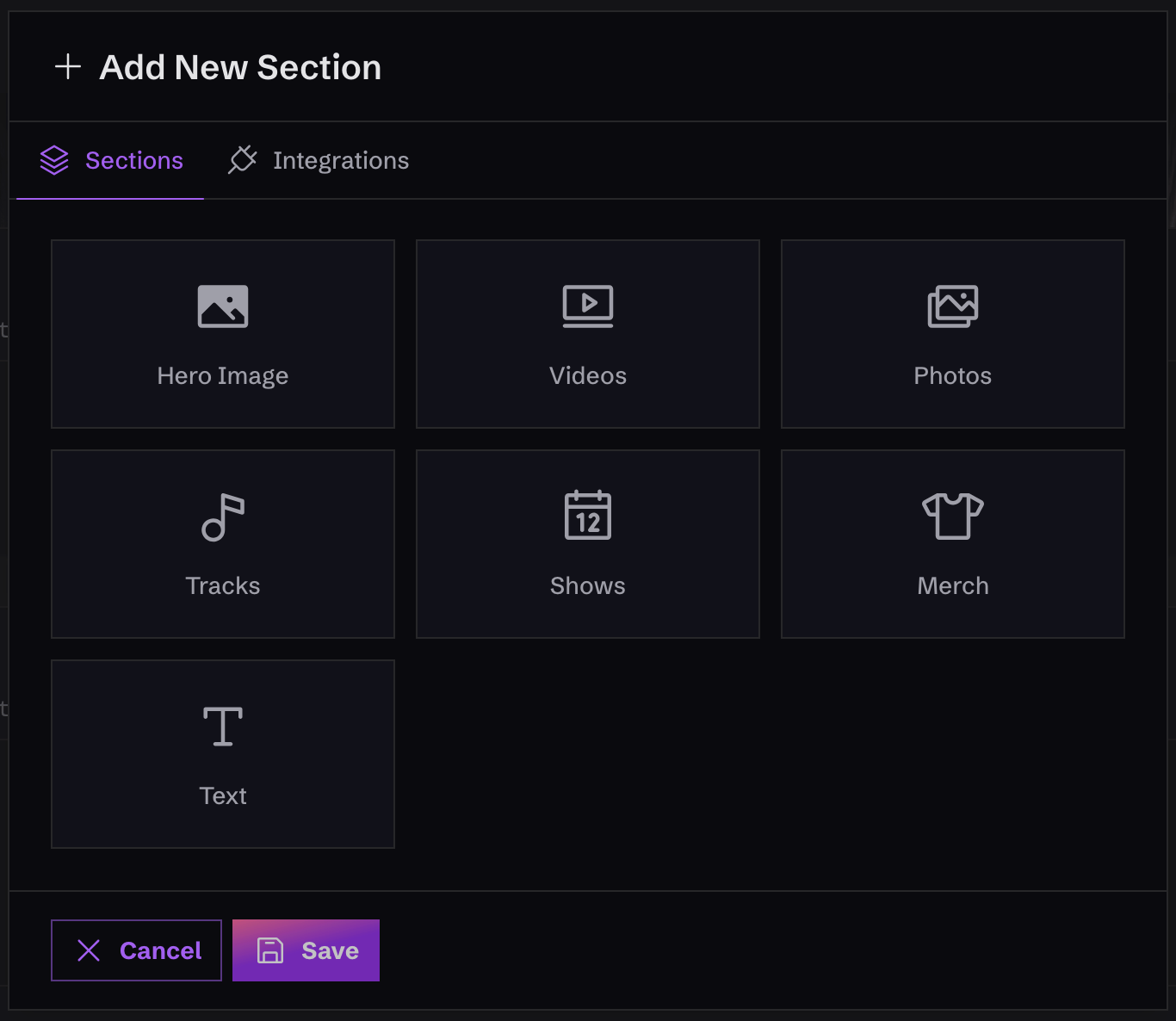 Once you've added some content, the last step is to create "Sections" for your website. A Section is just a part of the site that shows off some of your content, like your latest single or music video.
### Learn about different section types
To get more details about each of the available types of sections, visit any of these links:
* [Track Section](/sections/track-section)
* [Video Section](/sections/video-section)
* [Shows Section](/sections/shows-section)
* [Photos Section](/sections/photos-section)
* [Merch Section](/sections/merch-section)
* [Text Section](/sections/text-section)
* [Hero Image Section](/sections/hero-image-section)
Once you've added some content, the last step is to create "Sections" for your website. A Section is just a part of the site that shows off some of your content, like your latest single or music video.
### Learn about different section types
To get more details about each of the available types of sections, visit any of these links:
* [Track Section](/sections/track-section)
* [Video Section](/sections/video-section)
* [Shows Section](/sections/shows-section)
* [Photos Section](/sections/photos-section)
* [Merch Section](/sections/merch-section)
* [Text Section](/sections/text-section)
* [Hero Image Section](/sections/hero-image-section)